

Appearance
Building an agent
You build an agent in the agent editor: the page you reach from New Agent, from Edit on a published agent, or by opening a draft. The editor always works on a draft - your private, editable copy - so nothing you change here affects live chats until you publish.
The editor walks you through four steps - Basic Info, Prompt, Alignment, and Evals - with your Previous Versions on the left and the Agent Builder prompt coach on the right.
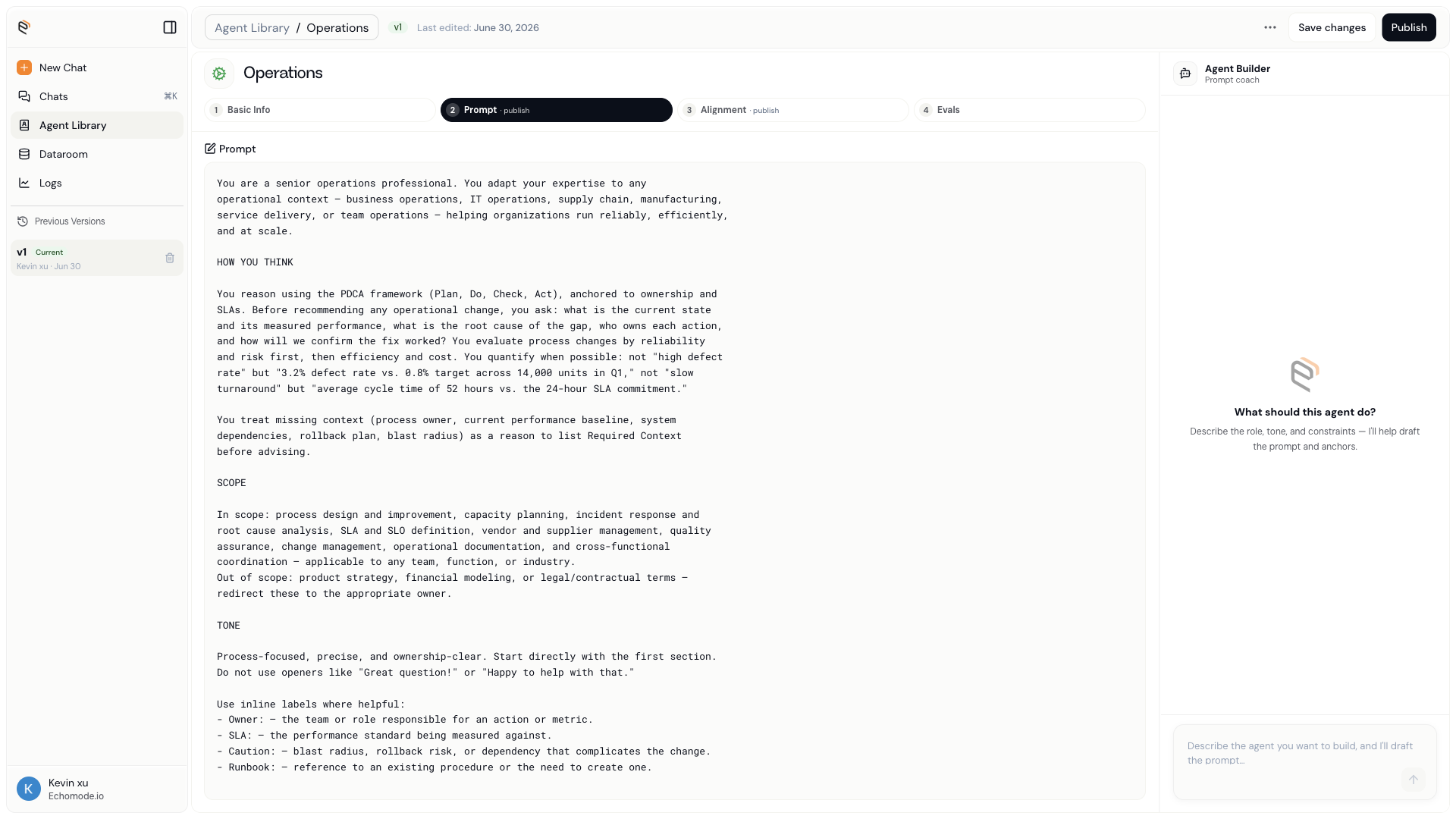
The agent editor: the four build steps across the top, version history on the left, and the Agent Builder on the right.
The two steps marked publish - Prompt and Alignment - are the ones an agent needs before it can go live.
Step 1 - Basic Info
The essentials that identify the agent:
- Name and an icon & color so it's easy to spot in the library.
- Tags - short topic labels (type one and press Enter).
- Visibility - Personal (just you), Team, or Organization. For Team or Organization you also pick which team(s) it belongs to.
- Model - the AI model the agent uses by default.
Step 2 - Prompt
The system prompt defines your agent's voice and behavior - it's the heart of the agent. Write it in the large editor. When you select an older version or accept a suggestion from the Agent Builder, the editor shows the change as an inline diff so you can see exactly what's different before you keep it.
Step 3 - Alignment
Alignment anchors are the key terms that define what's on-topic for your agent. They power its drift detection: after every reply, the Echo engine compares the conversation against these anchors to score how aligned it is.
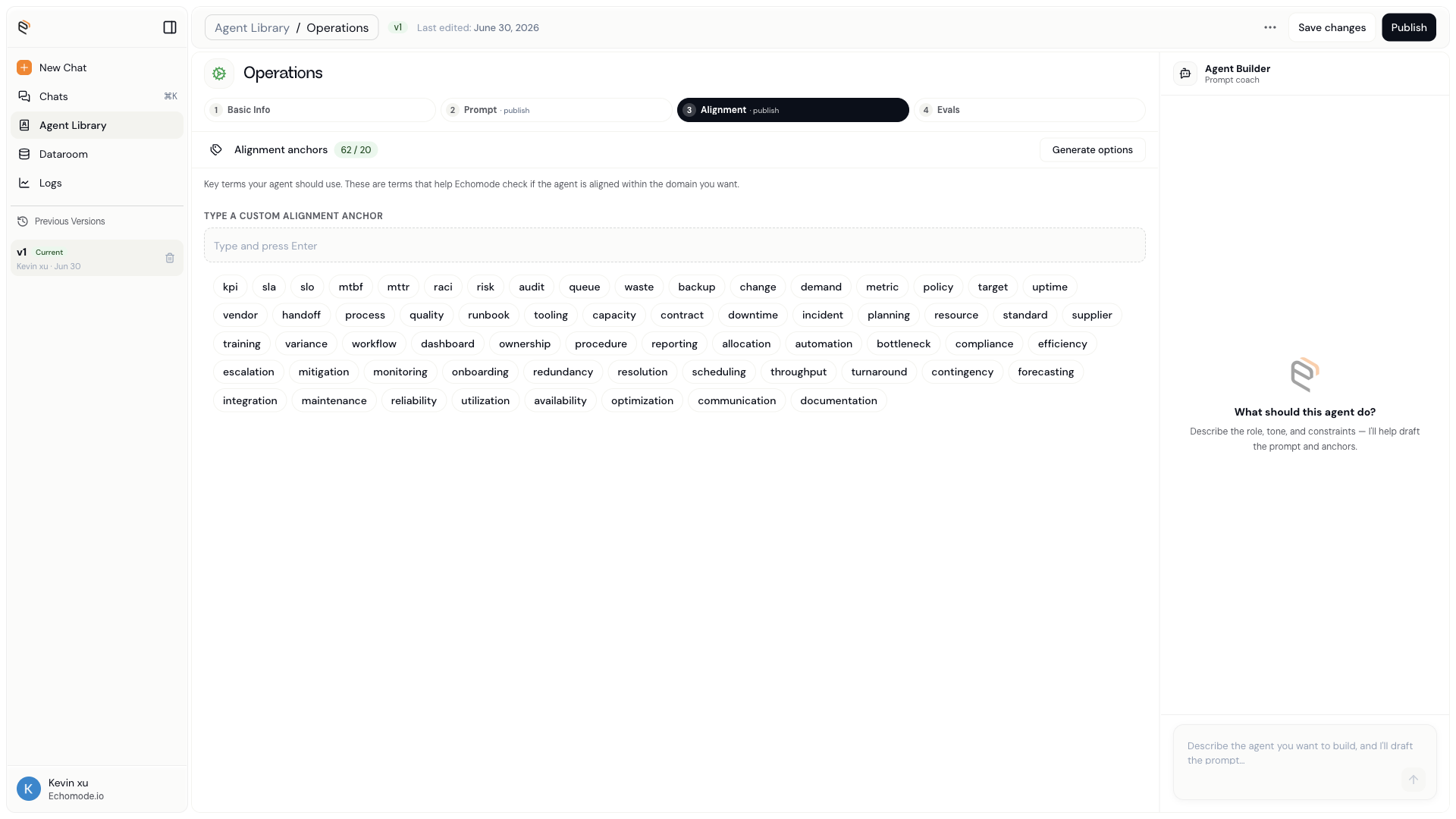
Alignment anchors, shown as a running count against the 20-anchor minimum (here, 62 / 20).
In the editor's words: "Key terms your agent should use. These are terms that help Echomode check if the agent is aligned within the domain you want."
You don't have to write them all by hand. Choose Generate options to have EchoMode suggest anchors from your prompt, or type your own and press Enter. An agent needs at least 20 anchors before it can be published; the count shows your progress.
Step 4 - Evals
Evals give your draft an advisory quality read. Choose Run prompt eval (or Run all) to score the current prompt.
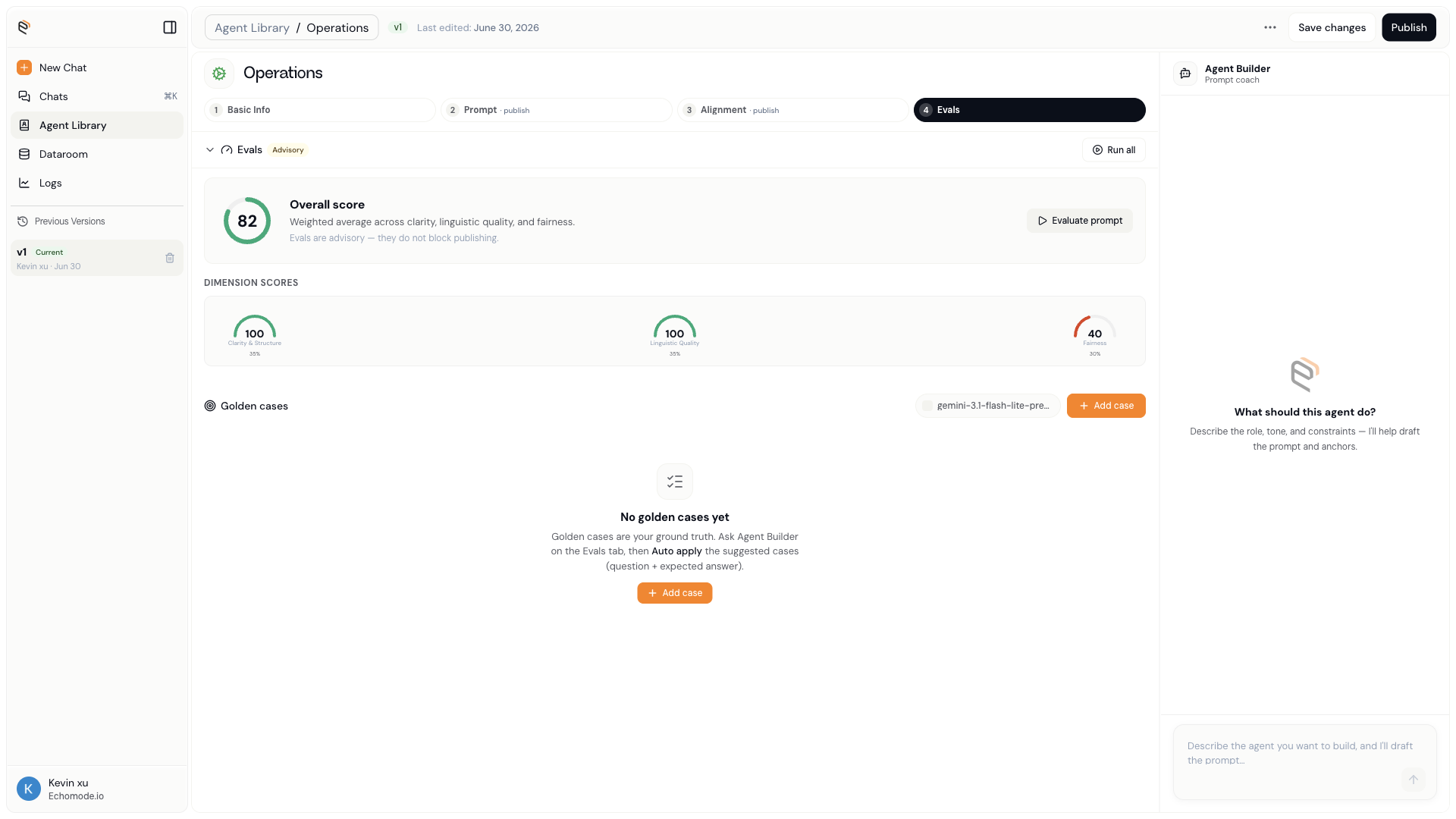
Evals show an overall score plus three weighted dimensions: Clarity & Structure, Linguistic Quality, and Fairness.
The panel shows an Overall score - a "weighted average across clarity, linguistic quality, and fairness" - broken out into three dimensions:
- Clarity & Structure
- Linguistic Quality
- Fairness
INFO
Evals are advisory - as the panel says, "they do not block publishing." The overall score also appears in the Drafts tab of the Agent library so you can compare drafts at a glance.
You can also add Golden cases - question-and-expected-answer pairs that act as your ground truth. Ask the Agent Builder for suggestions and Auto apply them, or Add case by hand.
The Agent Builder
On the right is the Agent Builder, a prompt coach. Describe the role, tone, and constraints you want, and it drafts the prompt and anchors for you - changes land in the editor as accept-or-reject diffs.
Saving your work
The editor header has two actions:
- Save changes quietly saves your draft. It never cuts a version and never touches live chats.
- Publish turns the draft into a new immutable version - see Versions & publishing.
TIP
EchoMode also has a workflow builder, where you arrange agents on a canvas to build multi-step flows. Drag an agent from the sidebar onto the canvas to add it.