

Appearance
Create your account
You can join EchoMode with a Google account or with an email and password. Both take less than a minute.
Sign up with Google
On the sign-up screen, choose Sign up with Google and approve the Google prompt. You'll land in EchoMode with your name and photo already filled in.
Sign up with an email and password
- Open the sign-up screen. Find the email form below the Sign up with Google button.
- Enter your work email in the Work email field (for example,
you@company.com). - Create a password. It must be 10–128 characters and include an uppercase letter, a lowercase letter, a number, and a special character. A strength meter shows your progress as you type. Retype it in the confirm field.
- Agree to the terms. Tick "I agree to Echomode's Terms of Service and Privacy Policy." You can leave the product-updates checkbox on or turn it off.
- Create your account. Select Create account. The button changes to Creating account…, then you're taken into the app.
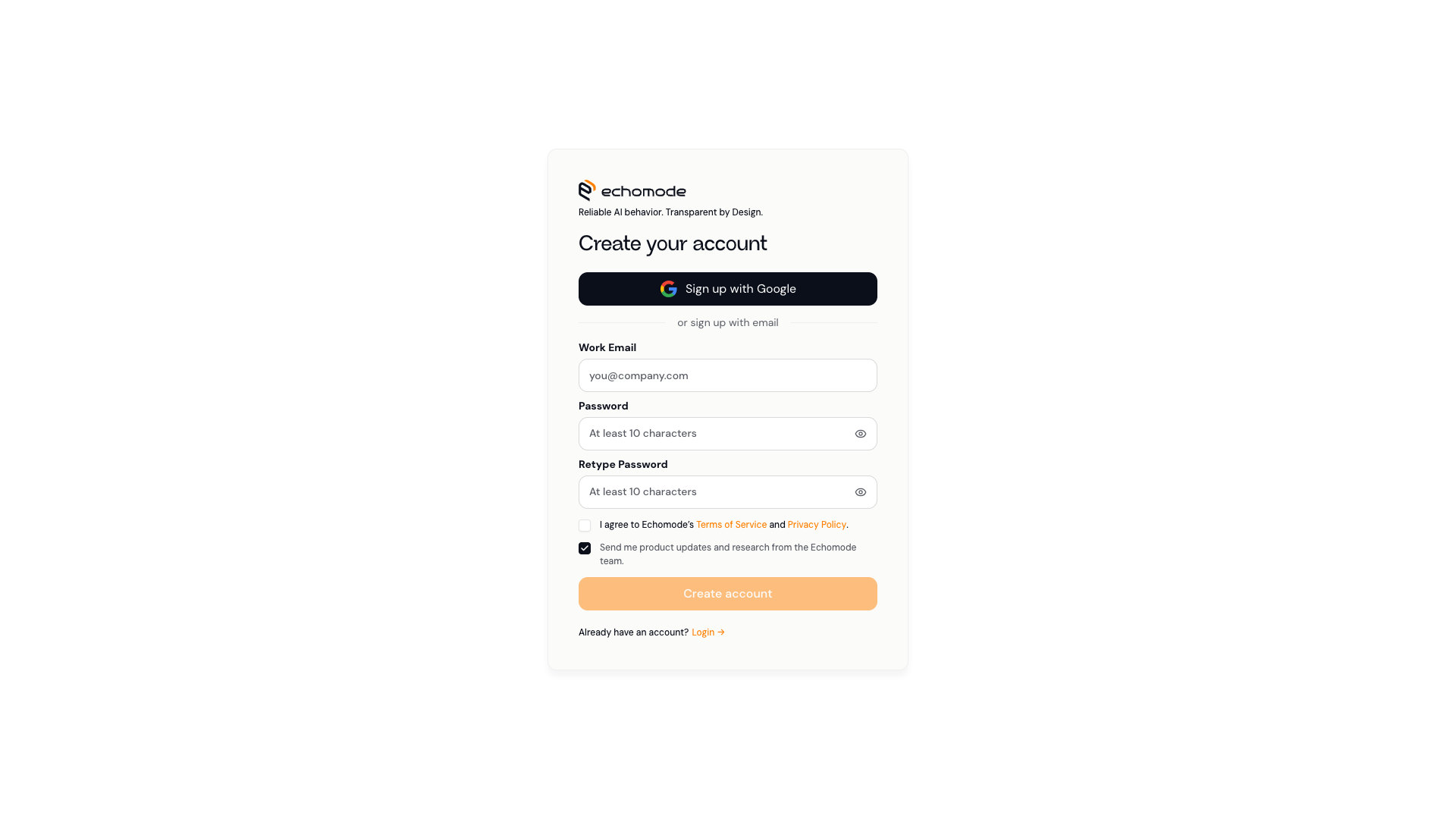
The sign-up screen: continue with Google, or create an account with your email and password.
Log in
To return later, open the login screen and either choose Sign in with Google or enter your email and password and select Log in.
WARNING
EchoMode has no self-serve "forgot password" link. If you signed up with Google, just sign in with Google. If you use an email and password and get locked out, ask a workspace admin to reset it for you (see Roles & permissions).
First-run personalization
Some workspaces show a short setup right after sign-up that tailors EchoMode to you — your industry, your role, the tone you prefer, and how strictly the assistant should stay on-topic. If you see it, pick the options that fit; you can change agent behavior later from the Agent library.
INFO
This personalization step depends on your workspace's setup, so it may not appear in every account.